TABLE OF CONTENTS
Installation on Microsoft Windows PC
System requirements
Casambi Pro can be run on Windows PC computer running Windows 10 or newer Windows operating system. Installing Casambi Pro on MacOS or Linux computers is not supported. Windows 11 or newer is recommended.
- The minimum supported Windows 10 version is 20H2, build 10.0.19042.
Installation process
Follow these steps to install Casambi Pro on your Windows 10 or newer device:
- Download the Casambi Pro setup file from the Casambi Pro web page (casambi.com/pro).
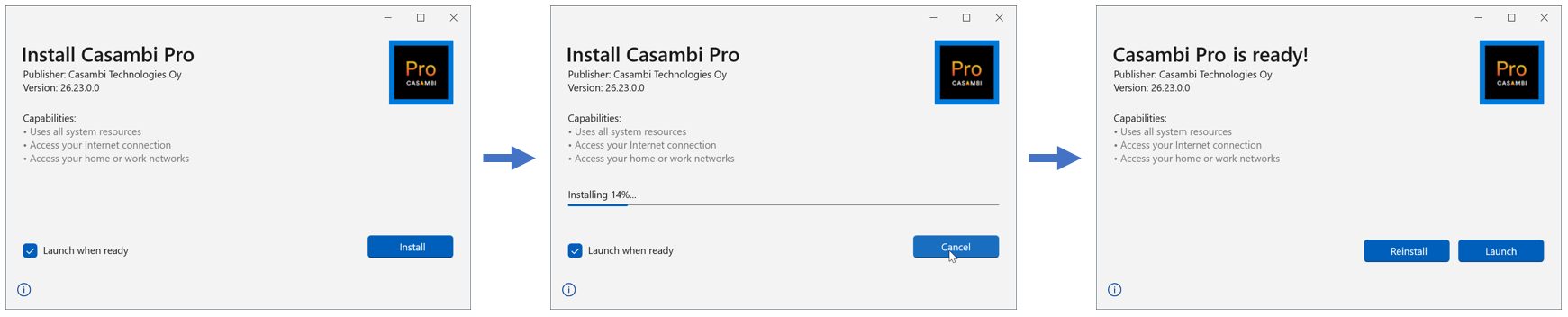
- Once the download is finished, run the Casambi Pro setup file → The setup wizard will open.
- Click "Install" to continue. Installation starts and its progress will be indicated on the screen.
- When the installation is finished, click on “Launch” to open the Casambi Pro application.
- When Casambi Pro is opened for the first time, tap the Sign In button to start the sign-up process.
If you already have a Casambi Pro account, you can use your existing credentials to sign in.
Updating Casambi Pro for Windows
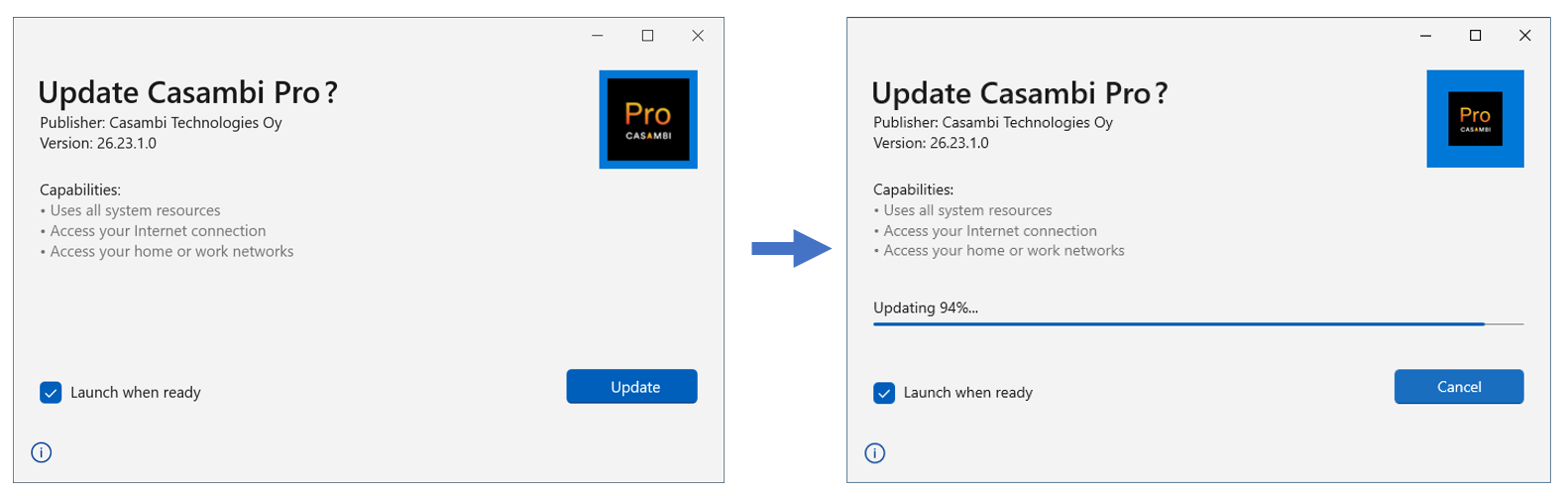
On every startup, the application automatically checks for updates. If a newer version is available, the application provides the user with an option to run the update. It is also possible to continue with the current version.
Note: It is not possible to downgrade the currently installed version to an older version.
|
Installation on Apple iOS devices
System requirements
Casambi Pro can be installed on any iOS device running iPadOS or iOS version 17.0 or newer. Generally, Pro supports current iOS version plus two older iOS generations. OS versions which are older than that are not supported.
For iOS devices (iPads and iPhones), following devices are supported as of November 2025
- iPad Pro 3rd generation or higher
- iPad Mini 5th generation or higher (not optimal due to the small screen size)
- iPad air 3rd generation or higher
- iPad 7th generation or higher
Supported iPhone devices, needed for NFC based EnOcean device pairing:
- iPhone 11 or higher
Please note, that on iOS devices, the Casambi Pro interface is optimized for iPad rather than iPhone due to the nature of Pro project content (e.g., large floorplans). A larger screen provides a better user experience. The main difference between the iPad and iPhone versions is that the iPhone version supports pairing self-powered EnOcean devices. This is because iPhones have two-way NFC capability, while iPads do not.
Installation process
- Before starting the installation of Casambi Pro, make sure your iPad’s or iPhone’s operating system version is 17.0 or higher. If not, please update the OS version first before proceeding with the installation.
- On your iOS device, go to the Apple App Store
- Search for Casambi Pro app
- Click the Get button in the App Store
- After Casambi Pro has been installed and opened for the first time, tap the “Sign In” button in the app to start the sign-up process.
If you already have a Casambi Pro account, you can use your existing credentials to sign in.
Updating Casambi Pro for iOS
Users can control how the App Store updates apps on their device, including Casambi Pro. On iOS, you can find App Update settings under: Settings > App Store > Automatic downloads.
Depending on the selected App Updates setting, updates are installed either manually or automatically:
- Setting is OFF: User needs to check if there are updates and launch update installation manually in the App Store.
- Setting is ON: App Store pushes the update to user’s device automatically, without asking for permission.
Note: It is not possible to downgrade the current installed version.
Uninstalling Casambi Pro
On both Windows and iOS devices, Casambi Pro can be uninstalled following the Operating System’s uninstallation tools and conventions.
Uninstalling the application from a device does not affect existing projects or user accounts.