TABLE OF CONTENTS
- Overview to circadian profiles
- Creating a circadian profile
- The Circadian Profile Editor in Casambi Pro for Windows
- Circadian profile properties
- Applying a circadian profile to a scene
- Firmware requirements
- Deleting a circadian profile
- Notes about circadian profiles
Overview to circadian profiles
Circadian profiles can be created at the project level and linked to scenes. When a scene with an assigned circadian profile is activated, the lighting system follows the profile’s curves for dimming and/or color temperature across a 24-hour cycle.
Summary of circadian profiles in Casambi Pro:
- Circadian profiles are defined at the project level, so they can be applied to scenes in any network within the project.
- A profile can include a curve for dimming, color temperature, or both.
- In Casambi Pro for Windows, you can create, edit, delete, and assign circadian profiles to scenes.
- On iOS devices, you can select which profile a scene uses, but you cannot create, edit, or delete profiles.
Creating a circadian profile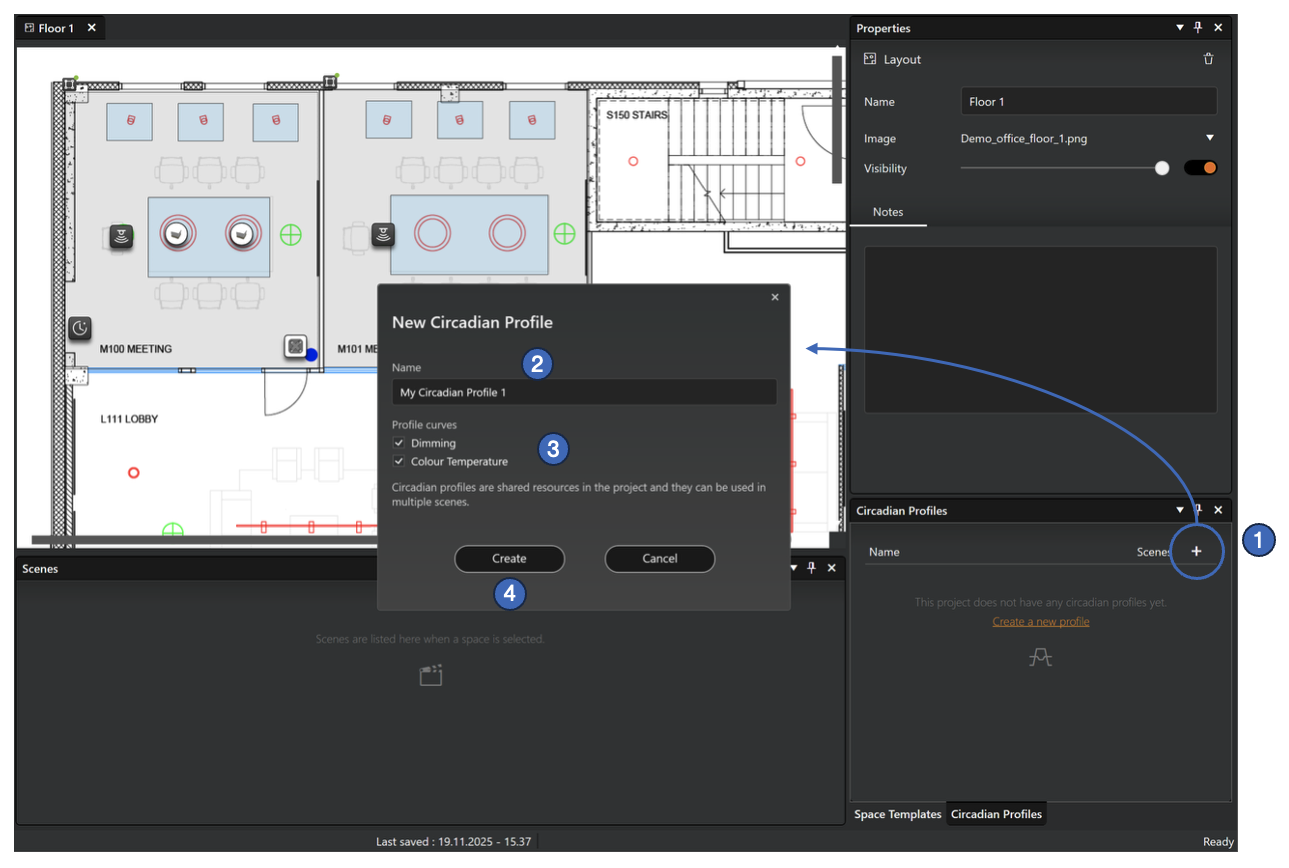
- In the Circadian Profiles pane, click the Add button (a plus icon) at the top right of the pane. The New Circadian Profile dialog opens.
- Enter a name for the new profile (mandatory)
- Select what curve(s) you want to have in the circadian profile. A profile must have at least one curve.
- Only Dimmer enabled: You can define a dimming curve graph only. When applied to a scene, the dimming level of luminaires in that scene will automatically adjust over time according to the profile graph settings.
- Only Colour temperature enabled: You can configure a circadian graph only. When applied to a scene, the colour temperature of tuneable white luminaires will automatically adjust over time according to the profile graph settings.
- Both Colour temperature and Dimmer enabled: You can configure two graphs that will then cause colour temperature to be adjusted & dimmed over time. When applied to a scene, the colour temperature of tuneable white luminaires and their dimming level will both change automatically over time according to the profile graph settings.
- Click the Create button to enter the Circadian Profile Editor.
The Circadian Profile Editor in Casambi Pro for Windows
Opening the editor
The profile editor is opened when a new circadian profile is created, or when user enters it to edit a profile.
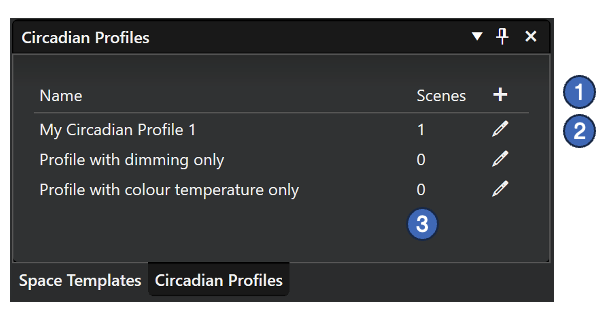
Options in the Circadian Profiles pane
- Create new circadian profile
- Edit circadian profile. The profile editor can also be opened from the property pane when a profile is selected in this list.
- Numbers in the Scenes column indicate the number of scenes where each scene has been used.
Editor window
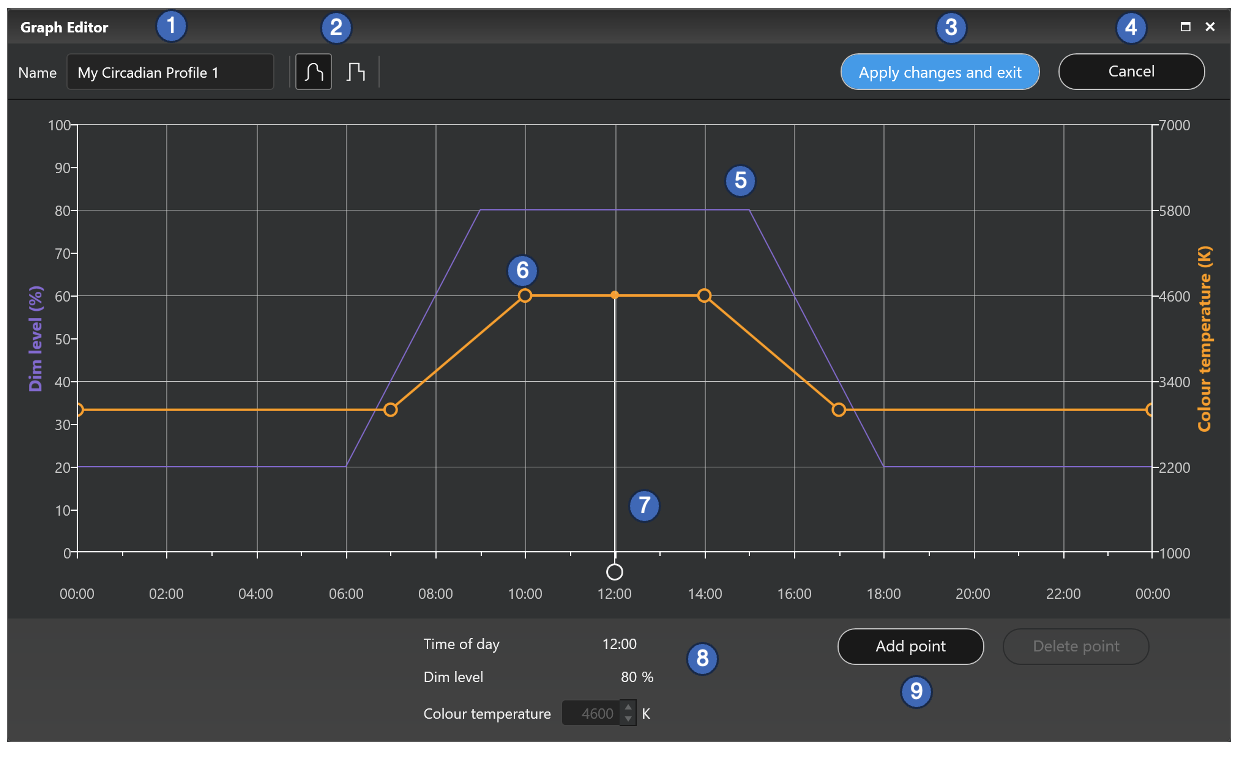
Editing a circadian profile:
- Name of the profile. Name is mandatory.
- Graph format selection between curved format (Curve) to a stepped format (Steps)
- Apply all changes to the scenes with the Apply changes and exit button. When this is clicked, all linked scenes will be updated.
- Cancel button for cancelling all changes to the profile.
- Profile curves for the dimming and colour temperature, depending which ones have been included in the current circadian profile
- The dimming curve is shown in purple, and the color temperature in orange.
- When the dimming curve is present, its value scale is shown on the left side of the graph.
- When the colour temperature curve is present, its value scale is on the right side of the graph
- If the profile includes both dimming and colour temperature curves, only one of them is active at a time. You can change from curve to another by clicking the curve lines.
- The curve can be adjusted by selecting and dragging the adjustment (corner) points of the curve.
- There can be max. 25 adjustment points in a circadian profile curve.
- Minimum time interval between adjustment points is 6 minutes.
- The line cursor can be moved by the white circular handle.
- When the cursor is moved, the time value will be adjusted.
- If the Add Point button is clicked, a new curve adjustment point is added to the curve position where the line is pointing
- Another way to create new corner points is to click a curve line segment with the mouse.
- Values for the adjustable parameters are displayed below the graph
- Time of day is adjusted only by moving the adjustment points in the graph.
- Dim level value displays
- The dimming level percentage value at the point where the white line cursor is, or
- The dimming value in a dimming curve corner point when the point is selected. In this case, the dimming value can be entered directly to the input field.
- Colour temperature value displays
- The Kelvin value at the point where the white line cursor is, or
- The Kelvin value in a colour temperature curve corner point when the point is selected. In this case, the colour temperature value can be entered directly to the input field.
- Add Point and Delete Point buttons.
- Clicking the Add Point button creates a new adjustment point to the active curve, to the current white line cursor position.
- Clicking the Delete Point removes currently selected adjustment point. If no point is selected, this button is disabled.
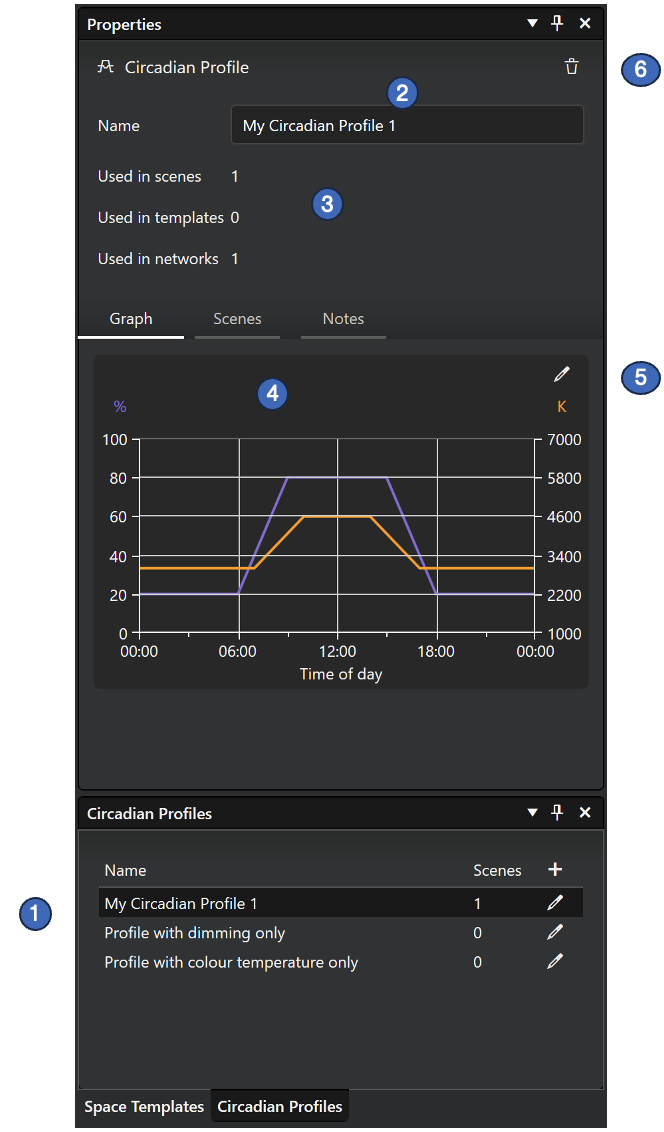
Circadian profile properties
When a circadian profile is selected in the Circadian profile pane, its properties are displayed in the property pane.
|  |
Applying a circadian profile to a scene
When there are circadian profiles defined in the project, they can be utilized in a circadian scene. When applied to a scene, depending on what curves the profile has, the colour temperature of tuneable white luminaires and their dimming level will both change automatically over time according to the profile graph settings.
Note: If you edit a graph that has been used in scene/s, the change will affect all related scene/s.
See the Scenes page for details on how to apply profiles.
Firmware requirements
When using circadian profiles, check the firmware requirements for luminaires:
- Color temperature control via circadian profiles is supported on all Evolution firmware versions.
- Dimming control via circadian profiles is supported from Evolution firmware version 47.0 onward. Therefore, if the firmware in luminaires is older than 47.0, dimming control will not work.
Deleting a circadian profile
Deleting a circadian profile in Casambi Pro for Windows:
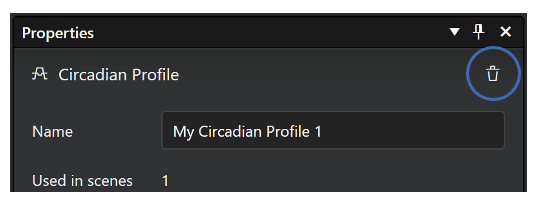
- Select the profile in the Circadian Profiles pane. Profile's properties are displayed in the property pane.
- Press the delete button at the top right corner of the property pane.
Notes about circadian profiles
- Circadian profiles can be created, edited and deleted only in Casambi Pro for Windows.
- Circadian profile for controlling dimming requires firmware version 47.0 or newer.